
One of my friend contacted me regarding an issue where the client had provided a locked-down, shared VDI environment, which was also being accessed by another vendor, to the point where he was occasionally disconnected mid-session.
Despite these constraints, the assessment had to proceed under the following conditions:
- All testing activities had to be performed from the client-provided VDI
- The target application was only accessible from within the VDI network
- Installing additional tools on the VDI was discouraged/blocked
- Activating Burp Suite Professional on client infrastructure felt… uncomfortable
He asked a simple question:
Is there any way I can still use my own Burp Pro locally, without activating it on the client VDI?
Since I enjoy learning and experimenting with new approaches, I decided to explore this problem during some free time over the New Year period.
This post documents the exact setup we ended up using.
The Core Idea
We want three things:
- All web access must originate from the VDI
- Burp Suite Professional should run only on the tester’s local machine
- No Burp Pro license activation on the client VDI
To solve this, we introduce a small EC2 relay server and use SSH port forwarding to stitch the environments together.
Client VDI ←→ EC2 Relay ←→ Tester Machine (Burp Pro)
Why SSH on Port 443?
Here’s the first hurdle we hit.
Port 22 (SSH) was blocked outbound from the VDI. This is extremely common in corporate environments. However, port 443 was allowed.
SSH doesn’t care what port it runs on, so we simply configured all tunnels to use port 443, which blends in with normal HTTPS traffic and avoids firewall issues entirely.
Step 1 — EC2 SSH Configuration (Critical)
By default, Amazon Linux disables remote port forwarding. Without fixing this, nothing below will work.
On the EC2 instance:
sudo nano /etc/ssh/sshd_config.d/99-portforward.conf
Add:
AllowTcpForwarding yes
GatewayPorts yes
Restart SSH:
sudo systemctl restart sshd
This allows ports forwarded from other machines to be exposed via EC2.
Step 2 — Local Machine (Burp Suite Professional)
Burp Pro runs only on the tester’s local machine.
Expose Burp Pro to EC2 (Reverse Forward):
ssh -i RelayServer.pem -p 443 -N -R "*:9001:127.0.0.1:8080" ec2-user@IPAddress -vvv
This makes Burp Pro (listening on 8080) available as:
EC2:9001 → Mac:8080 (Burp Pro)
Allow Burp Pro to send traffic back via EC2 (Local Forward):
ssh -i RelayServer.pem -p 443 -N -L 8888:127.0.0.1:8080 ec2-user@IPAddress -vvv
This lets Burp Pro send traffic back through EC2, ensuring requests ultimately exit from the VDI network.
Step 3 — Client VDI
On the VDI, we run Burp Suite Community only as a lightweight proxy endpoint.
SSH Tunnel from VDI:
ssh -i RelayServer.pem -p 443 -N -L 8081:127.0.0.1:9001 -R 8080:127.0.0.1:8080 ec2-user@IPAddress
What this does:
- EC2:8080 → VDI:8080 (Burp Community)
- VDI:8081 → EC2:9001 → Burp Pro (Mac)
Step 4 — Burp Configuration
Burp Suite Professional (Local Machine)
- Listener:
- Bind address: All interfaces
- Port: 8080
- Upstream Proxy
- Host: 127.0.0.1
- Port: 8888
The figure below shows Burp Pro (Local Machine) is configured with upstream proxy:
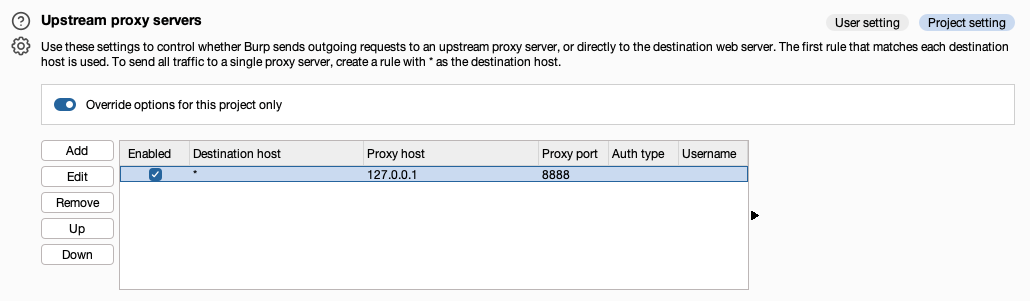
Burp Pro never connects directly to the target application. All requests ultimately exit the VDI network.
Burp Suite Community (VDI)
- Listener
- 127.0.0.1:8080
- Only one listener is required
The figure below shows Burp Suite configured:
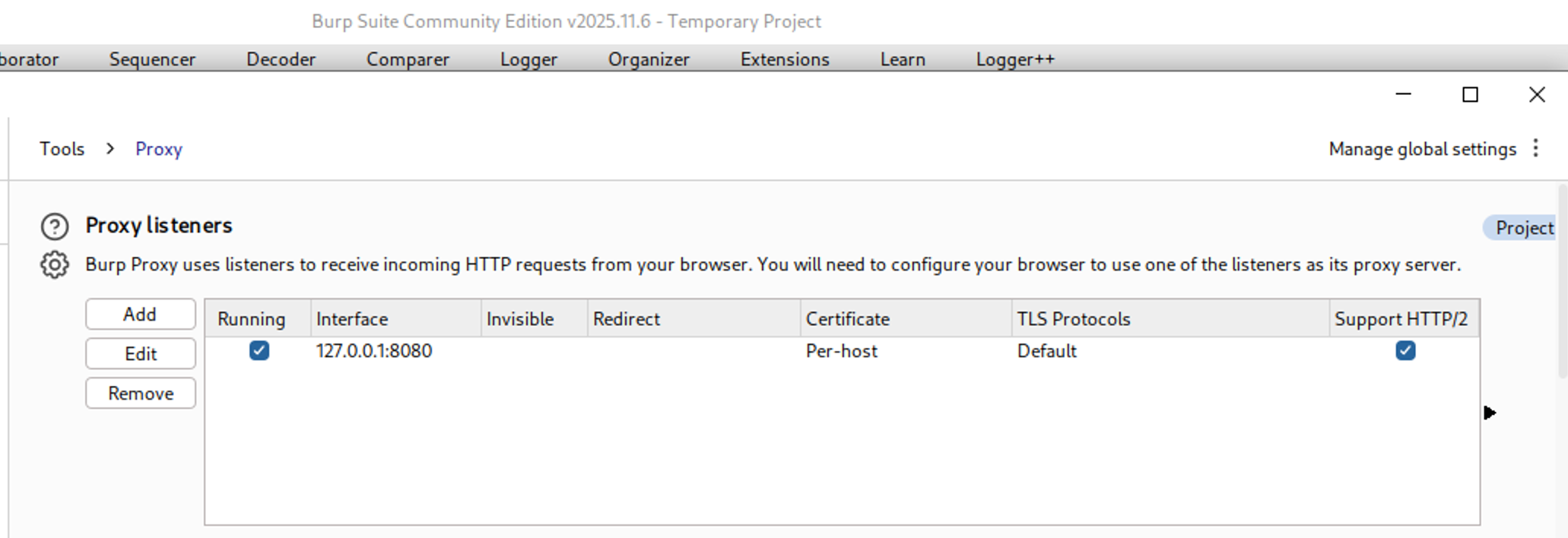
Burp Suite Community on the VDI is used purely as a lightweight proxy endpoint.
No analysis, scanning, or modification is performed here.
Note: Do not use Burp’s embedded browser
Firefox on the VDI
Configure Firefox manually:
- HTTP/HTTPS Proxy: 127.0.0.1
- Port: 8080
This way:
- Firefox sends traffic to 127.0.0.1:8081 on the VDI
- 8081 is your SSH local forward into the relay + Burp Pro chain
- The VDI remains the browsing endpoint, while Burp Pro performs analysis remotely
Now the browser flow is:
Firefox (VDI) → EC2 → Burp Pro (Mac) → EC2 → Burp Community (VDI) → Target
The figure below shows that Burp Pro (Local Machine) is receiving all the traffic:

Lessons Learned
- SSH tunnels create paths, not routing, you must design the flow
- Port 443 is your friend when 22 is blocked
- EC2 is an excellent neutral relay point
Final Thoughts
This setup has now been used successfully for:
- Internal web apps
- Client-provided VDIs
- Restricted corporate networks
- Long-running Burp sessions
If you ever feel uneasy about activating your Burp Pro license on a client machine, this is a clean, professional alternative.
And yes, my friend was very happy (I got a coffee from him ☕).
Disclaimer: It is highly recommended to consult with the client to ensure they are comfortable with the use of an EC2 relay, as the traffic will be routed through an AWS environment.